
Note Bridge
About
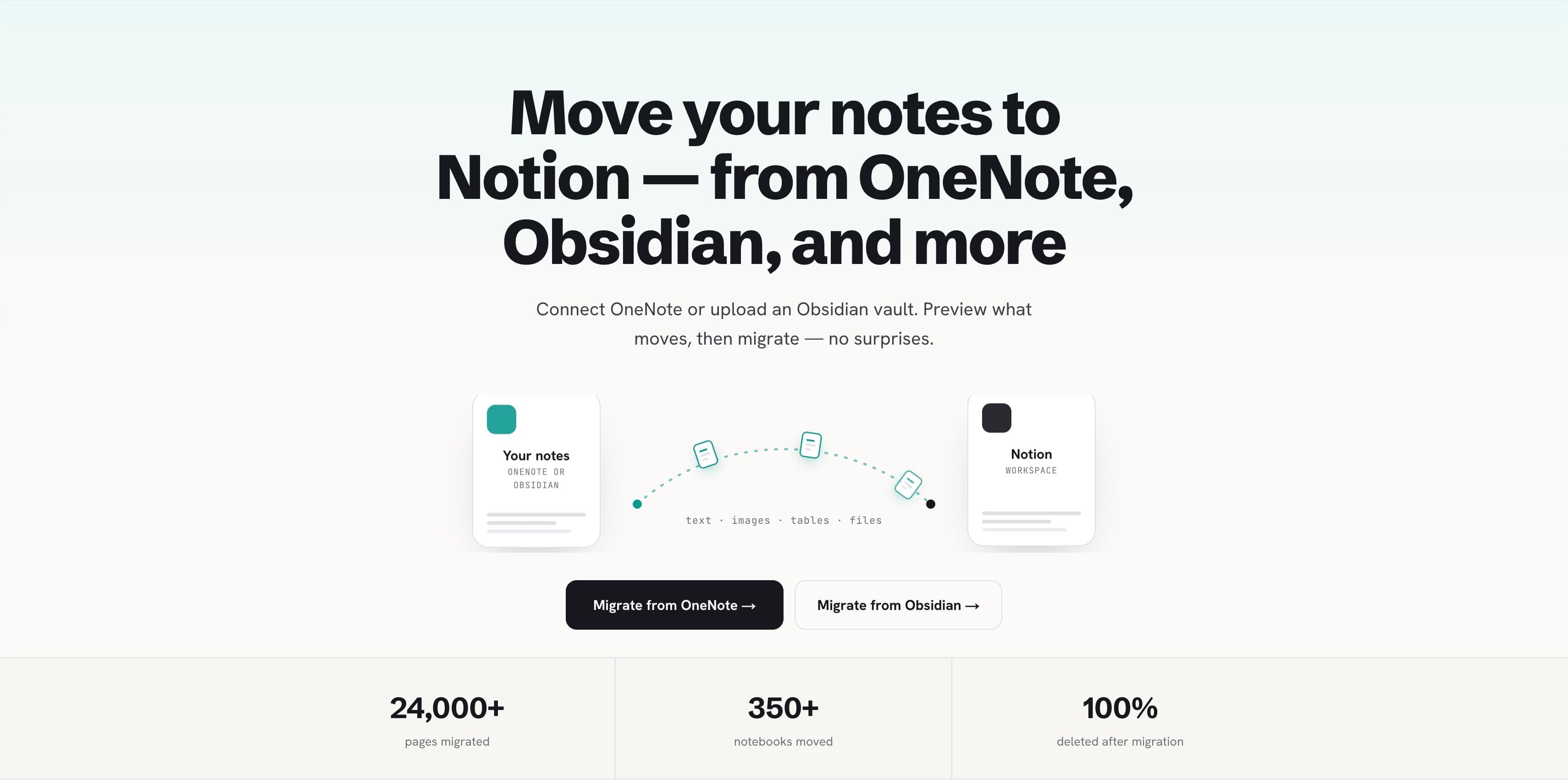
Note Bridge moves your OneNote notebooks into Notion directly, with no export files and no copy-paste. Notion has no built-in OneNote importer; Note Bridge fills that gap. It also migrates Obsidian vaults.
What carries over
- Your structure: notebook > section group > section > page becomes the same tree of Notion pages.
- Rich text, headings, lists, to-dos, tables, code blocks, links and math (as Notion equations).
- Images and file attachments, uploaded into Notion. Handwriting (ink) is kept as an image.
- From Obsidian: wikilinks, callouts, frontmatter, tags and embedded files where Notion has a clean match.
Teams and SharePoint notebooks
Notebooks that live in Microsoft Teams or SharePoint move too, including private channel notebooks. Note Bridge finds your Team notebooks automatically, and you can add any SharePoint site by its URL. One migration can mix your own notebooks with shared ones. A shared-notebook page uses 3 page credits; a page from your own notebooks uses 1. If your organization requires admin approval for shared notebooks, you can still migrate your own notebooks.
Built for large notebooks
Migrations of thousands of pages run in the background. Progress is shown live, and every migration ends with a page-by-page report.
Try before you pay
Your first 20 pages are free. Note Bridge scans your notebooks first and shows the page count, the price and anything it cannot read (such as password-protected sections) before you pay. Pricing is a one-time payment based on page count, starting at US$9. No subscription. Larger organizations can contact us for an Enterprise migration.
Limits, stated upfront
OneNote's freeform canvas becomes Notion's linear blocks, so free positioning on the page is lost. Merged table cells are split, and the report lists where.
Privacy
Note Bridge only reads your OneNote. Your notes pass through temporary storage during the migration and are deleted right after delivery.
Features
- Read, insert, & update contentCan read, insert, & update pages, databases, and blocks shared with this connection.
How to use
- Go to note-bridge.co and sign in.
- Choose your source. For OneNote, connect your Microsoft account (read-only access). For Obsidian, select your vault folder in your browser.
- Pick the notebooks or folders to migrate, including Teams & SharePoint notebooks. Note Bridge scans them and lists every page.
- Choose the pages, then connect Notion and pick the page your notes should go under. You see the page count and price before you pay. Your first 20 pages are free.
- Start the migration and follow the live progress.
- When it finishes, review the report and open your pages in Notion.