
About
Italic turns what you say into clips, memos and meeting notes, and its assistant can act on them. Connect Notion and Italic saves to the pages and databases you choose.
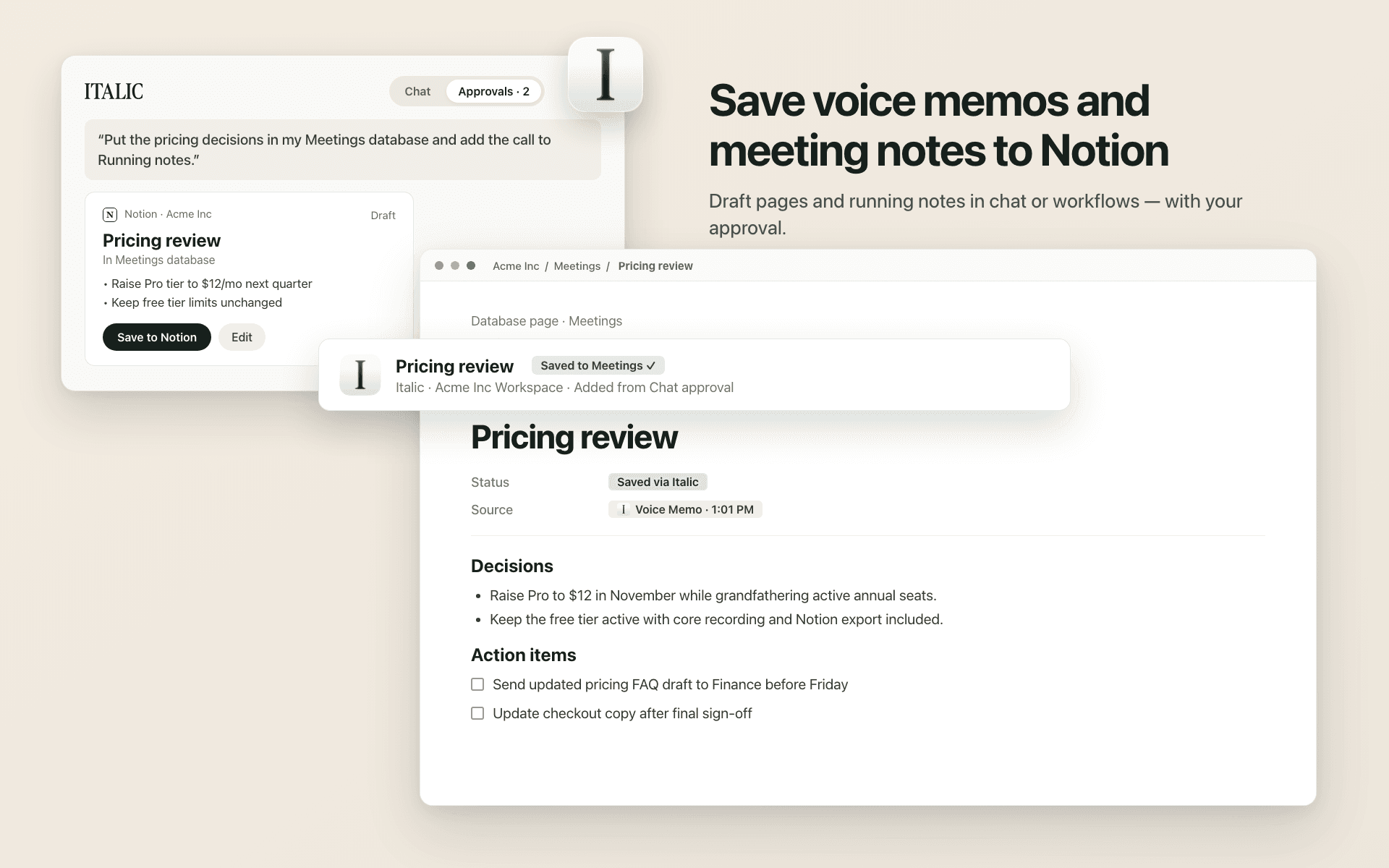
Ask in chat: say “put this in my meeting notes” and Italic drafts a page in the page or database you mean, with the title and content ready for you to check, edit and save.
Add to a running page: Italic adds new notes to the end of a page you name, like a daily log or a project’s running notes.
Save with workflows: save every meeting’s summary, transcript or an AI write-up to your Meetings database, automatically or after you approve it.
You stay in control. Italic sees only the pages and databases you share with it, asks before it saves unless you choose otherwise, and never changes or deletes what’s already in your pages.
Features
- Read & insert contentCan read & insert pages, databases, and blocks shared with this connection.
How to use
Sign in to Italic at app.italic.com or in the Italic iPhone app.
Open Connectors (on iPhone, Profile → Connectors), choose Notion, then Connect a Notion workspace.
On Notion’s screen, pick the pages and databases Italic may use, then allow access.
In chat, ask Italic to save something, for example “Put this memo in my meeting notes”, check the draft and choose Save to Notion. Or add a Save to Notion action to a workflow.
To share more pages later, open Notion in Italic’s Connectors and choose Choose pages.